Features
nocardio area by area — what each feature does and what it gives you.
Dashboard
Home screen, quick actions and the tiles you put together yourself.
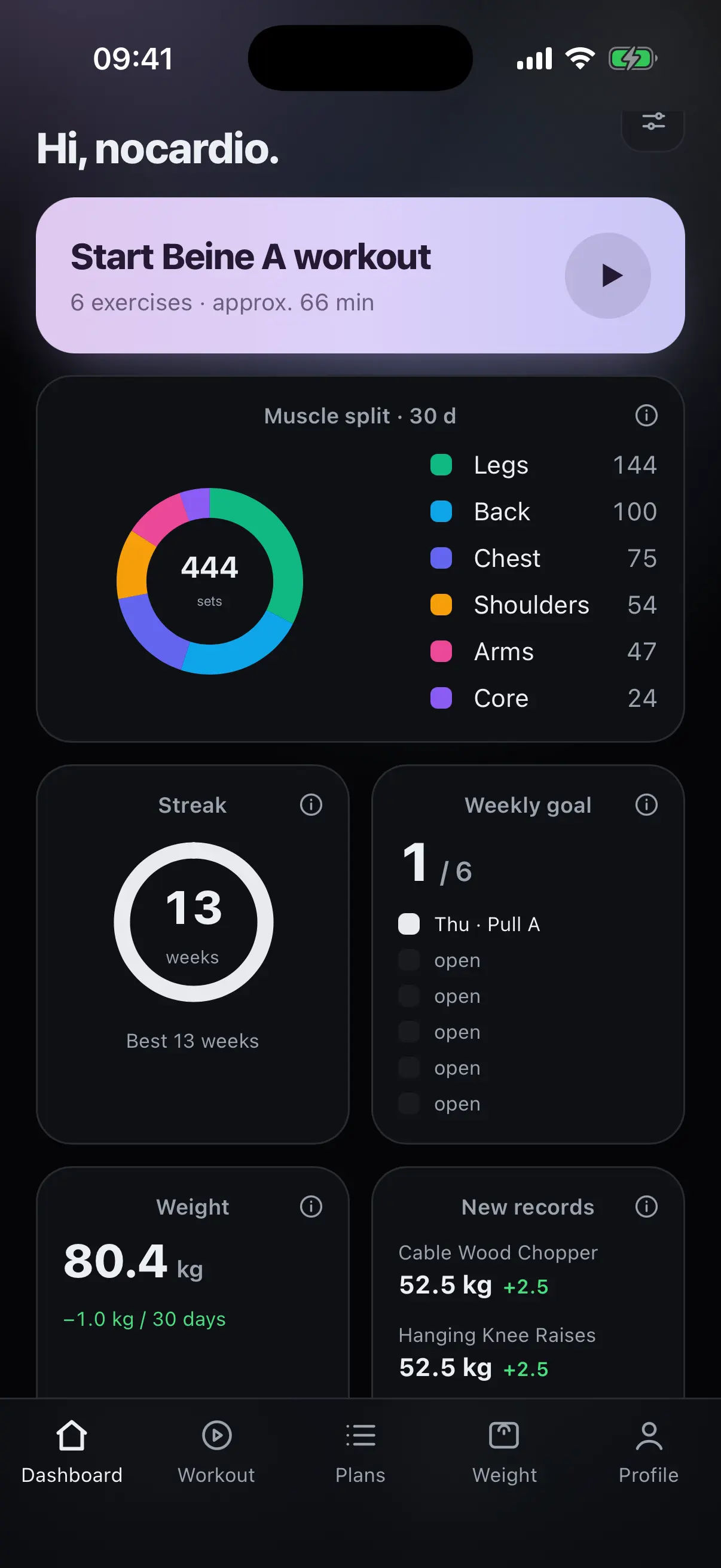
The home screen
At the top sits the button that takes you into the next training day of your active plan. Below it are the tiles with the short numbers on your training and your statistics.
- Start workout
- The next day from your plan, with the number of exercises.
- Tiles
- Streak, weekly goal, volume, muscle split, stats overview, weight, new records.
- Widget menu
- Sets which tiles appear and in what order.
- Plus button
- Floats at the bottom right, within reach of your thumb.
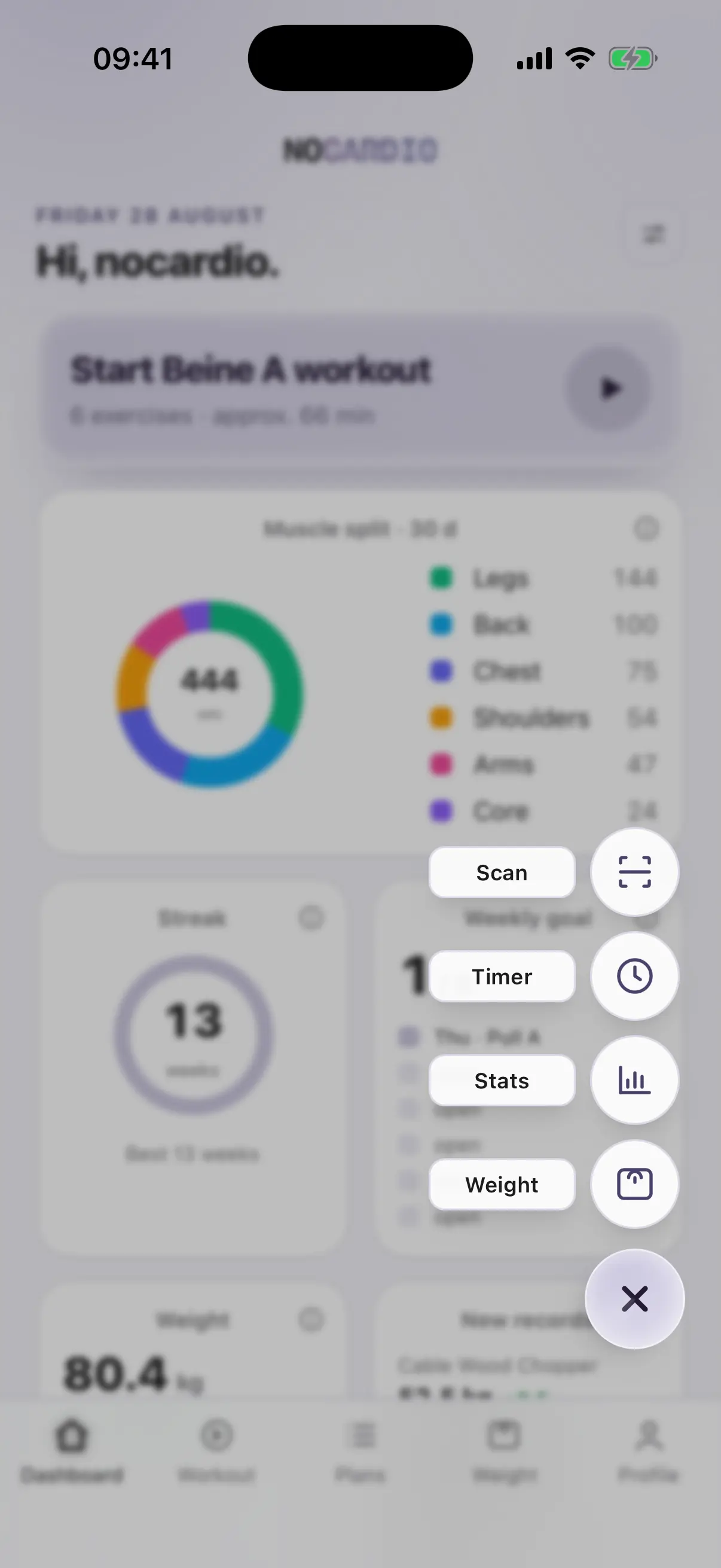
The plus button, fanned out
One tap fans out four quick actions. You reach the QR scanner, timer, statistics and weight without going through the tabs.
- QR scanner
- Take over a plan from a code.
- Timer
- Rest timer, also outside a workout.
- Statistics
- Straight into the full analysis.
- Weight
- Log today's body weight.
The button sits at the bottom right because a thumb reaches that spot one-handed. If you do not need it, switch it off in the widget menu.
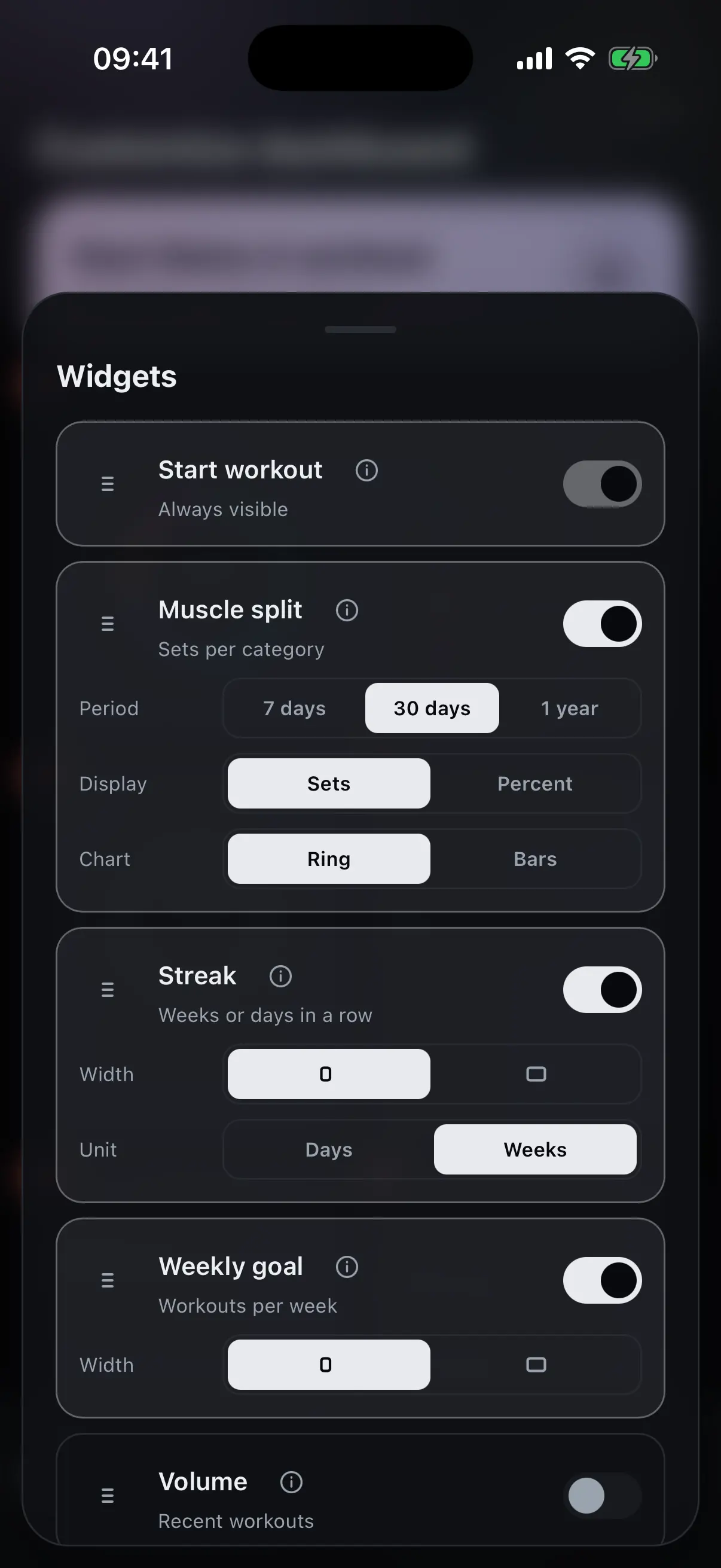
Set up widgets
In the widget menu you drag the tiles into the order you want and switch each one on or off. The plus button is in the same list.
- Reorder by the handle.
- Switch every widget on and off, including the plus button.
- Choose the width, half or full, wherever the tile allows it.
- Set the period and the display per tile.
Info button per widget
Behind the small i it says exactly what the tile shows, over which period and by which calculation. A number without that is not an answer.
Training
The running training day, the history and switching between plans.
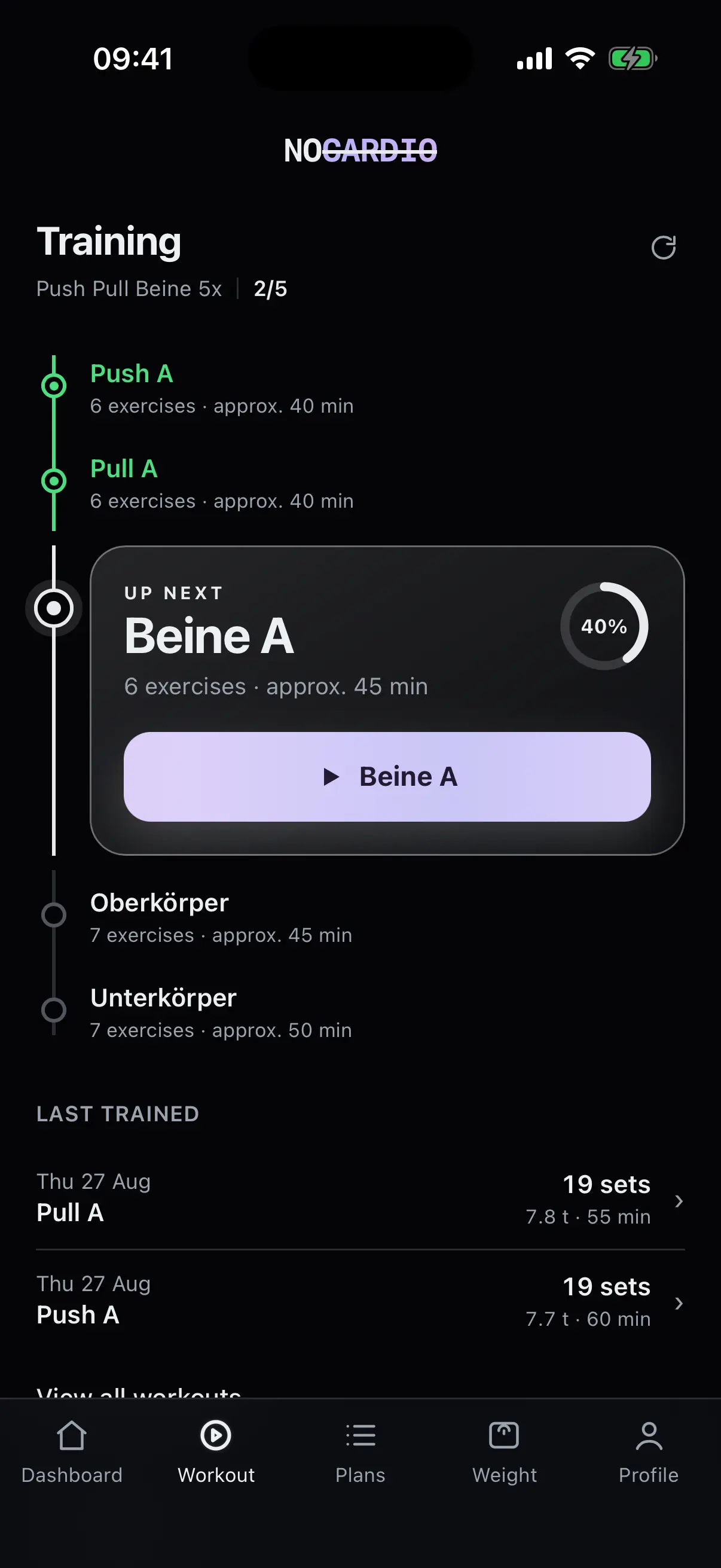
No workout running
The days of your active plan run as one vertical track. The day that comes next grows into a card in the middle of the track and carries the start button.
- Next day
- Follows from the order in your plan and your last finished workout.
- Another day
- You can pick any other day of the track if you feel like training something else today.
- Muscle groups
- Each day names the groups it works, so you recognise the day without opening it.
- Last trained
- Two rows below the track, with the way into the full history.
Active workout
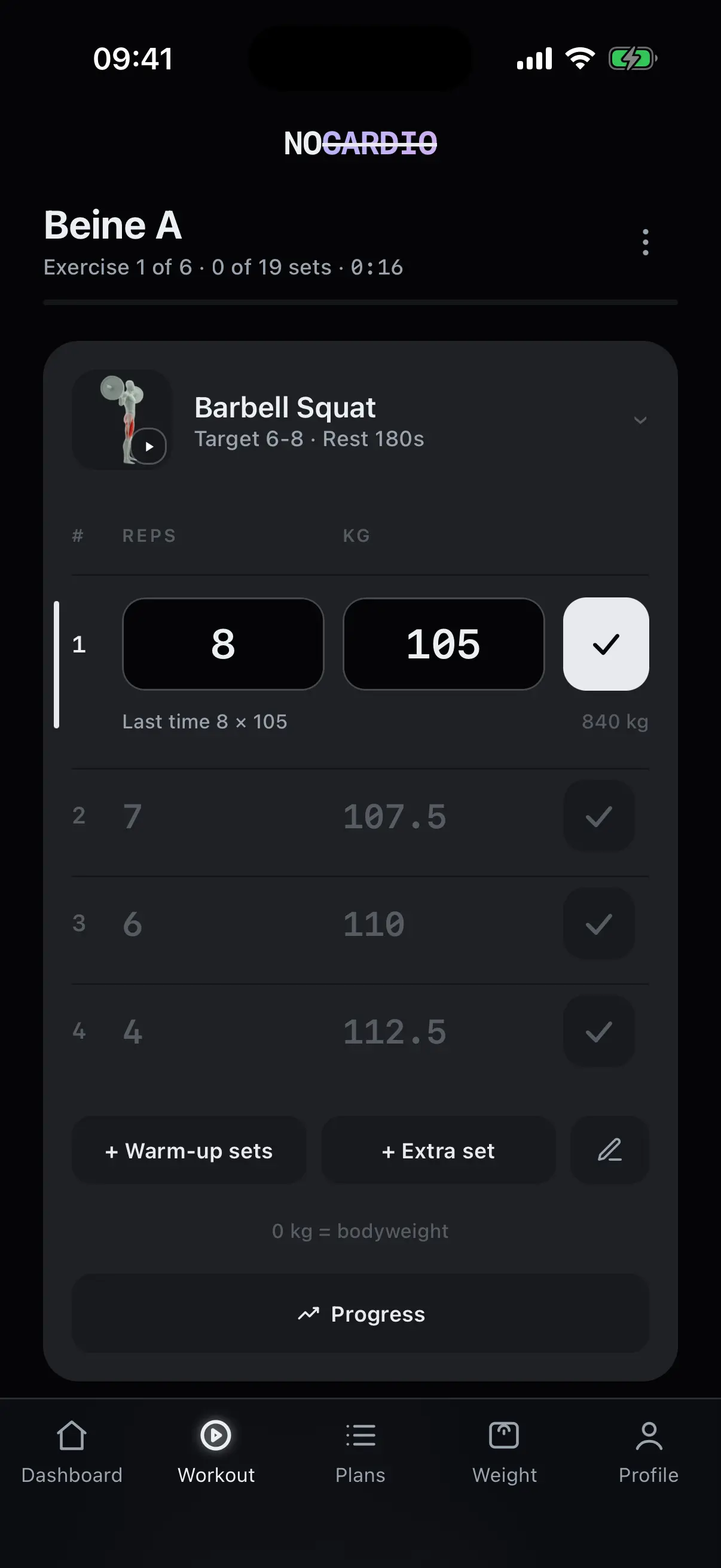
During the workout you work down the set list from top to bottom. Each set is ticked off on its own, and the rest timer starts by itself.
- Set list
- Weight and reps per set, a tick for done.
- Last time
- Every exercise shows what you managed last time.
- Rest timer
- Runs with the rest time from your plan, with sound and vibration at the end.
- Without a connection
- The workout runs through completely in a basement, and no set is lost.
Workout history
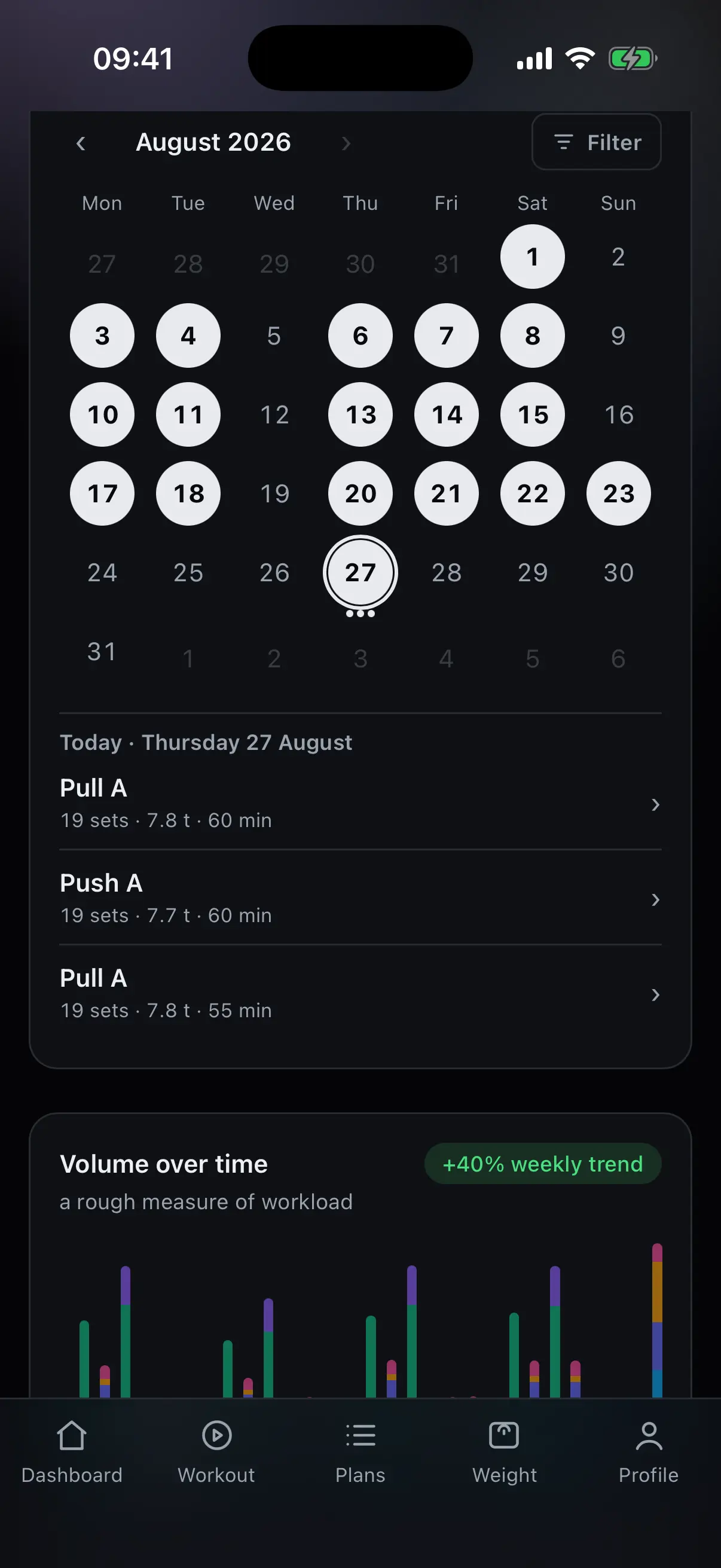
The calendar marks every day you trained. Below it are the workouts of the selected day; a tap opens a workout with all its sets.
- Calendar
- The month with all training days, month by month back.
- Filter
- Show a single training day instead of all.
- Per workout
- Name of the training day, sets, volume and duration.
Other plans
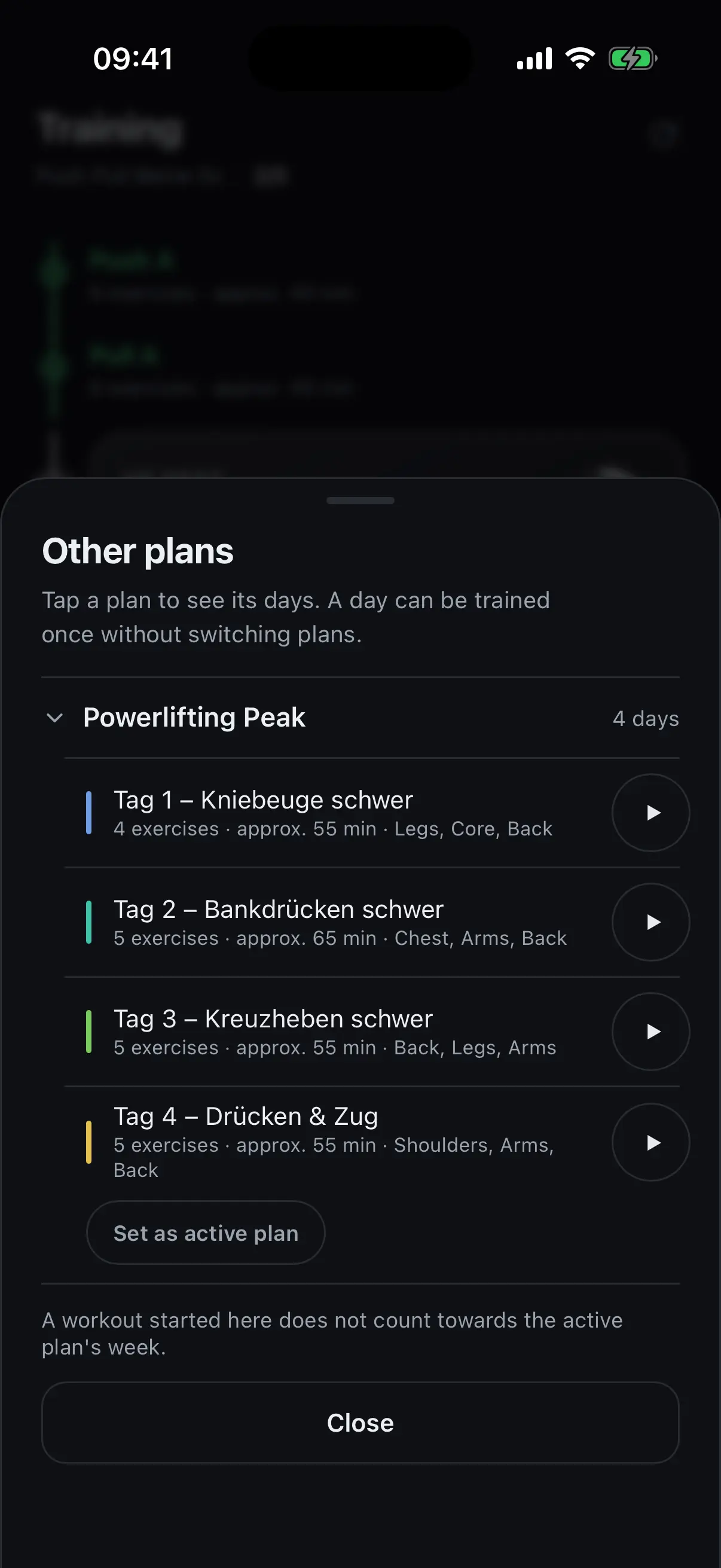
Your other plans shrink to one row at the end of the track. It opens an overview from which you can train a single day.
- One-off
- A day from another plan, without switching your active plan.
- Track stays
- The next day of your active plan stands unchanged afterwards.
How you build plans, order days and take over templates is in the Plans section.
Plans
Build and edit your own plans, or take over a ready-made template.
Your plans
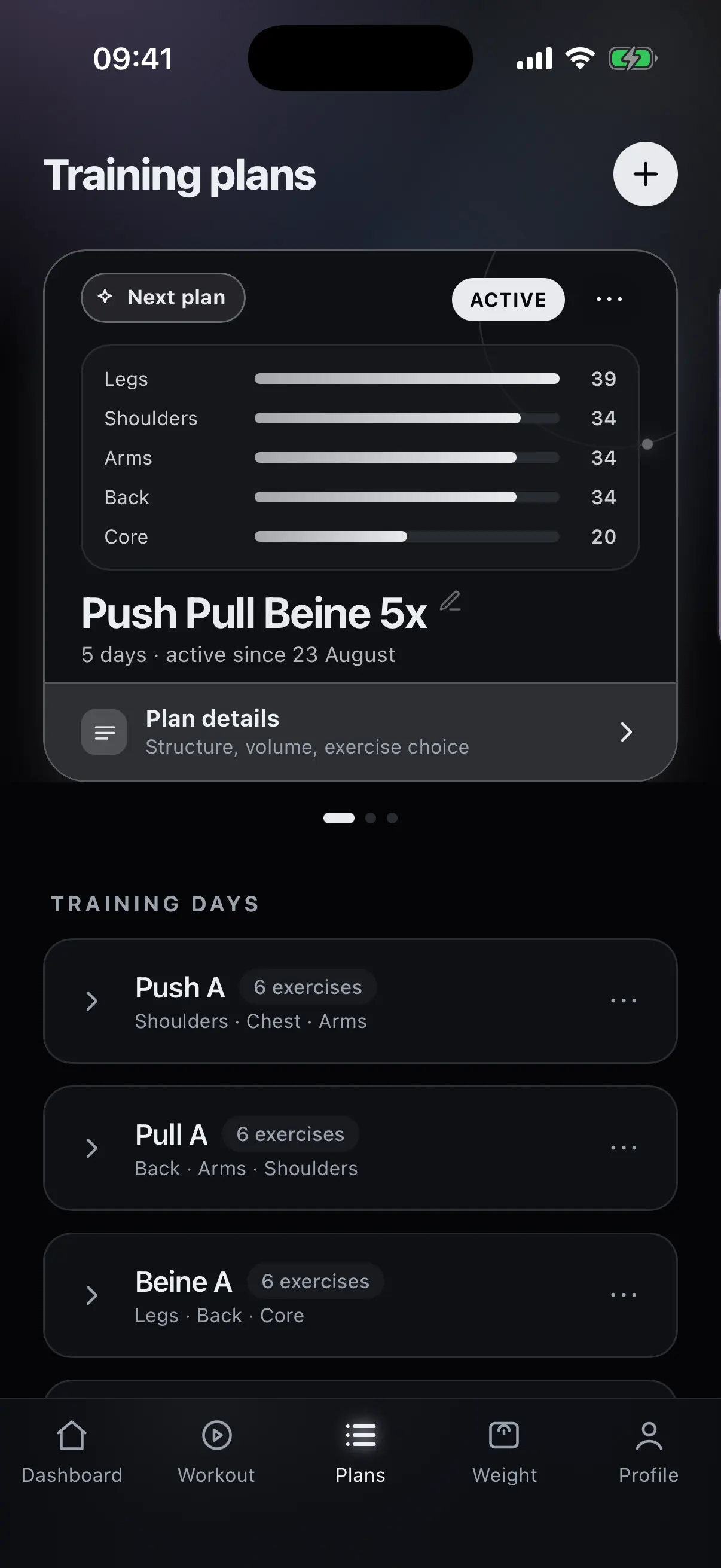
At the top is the card of your active plan, below it its training days. You swipe sideways between several plans.
- Plan card
- Name, number of days, since when the plan is active.
- Split
- Sets per muscle group the plan calls for, as bars.
- Plan information
- Split, volume and exercise selection of the plan.
- Training days
- Per day the number of exercises and the muscle groups.
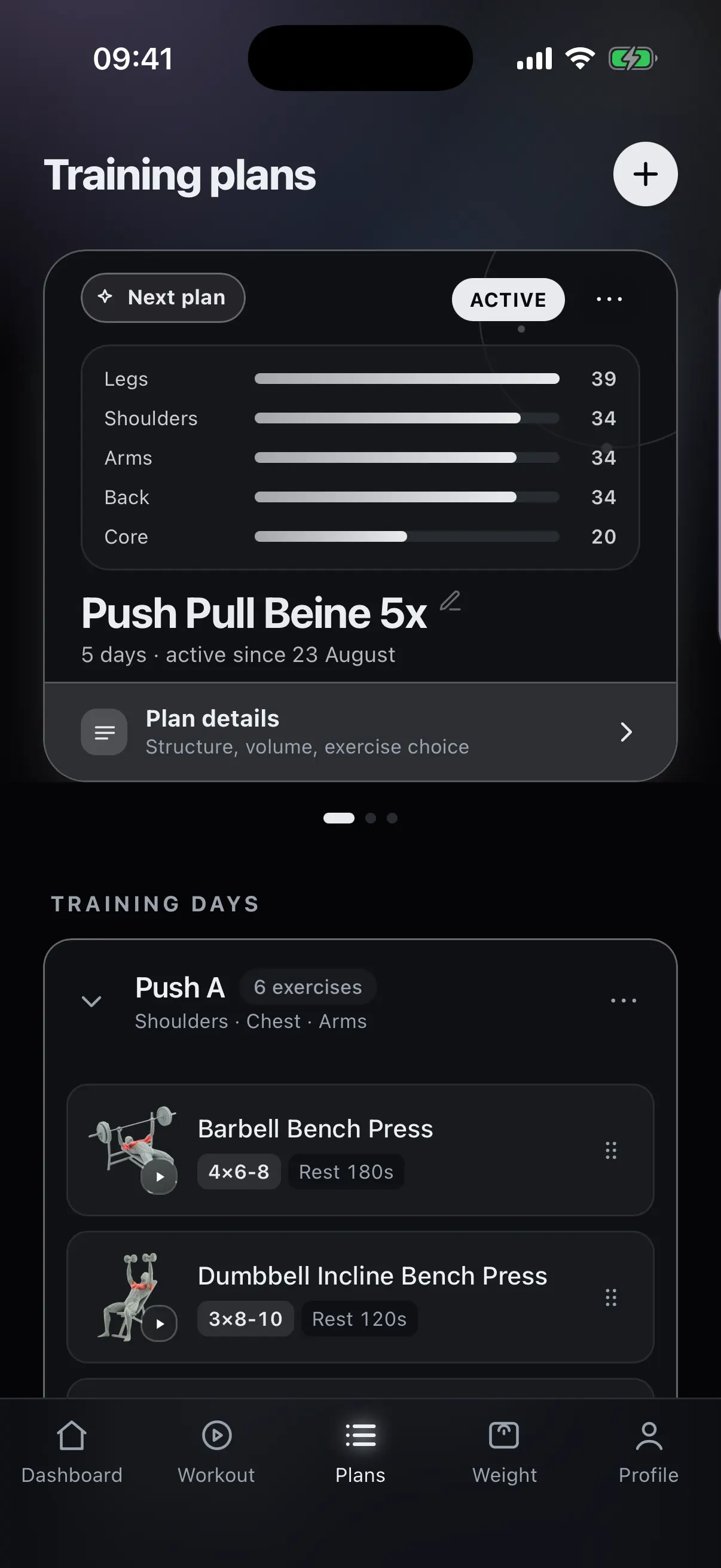
Create and edit a training plan
A tap opens the day. Inside are the exercises in the order you train them, each with sets, reps and rest time.
- Per exercise
- Sets, reps, rest time and notes.
- Reorder
- Move days and exercises freely by the handle.
- On the big screen
- Plan on the computer, take only your phone to the gym. The same plan either way.
Editing also runs through completely without a connection.
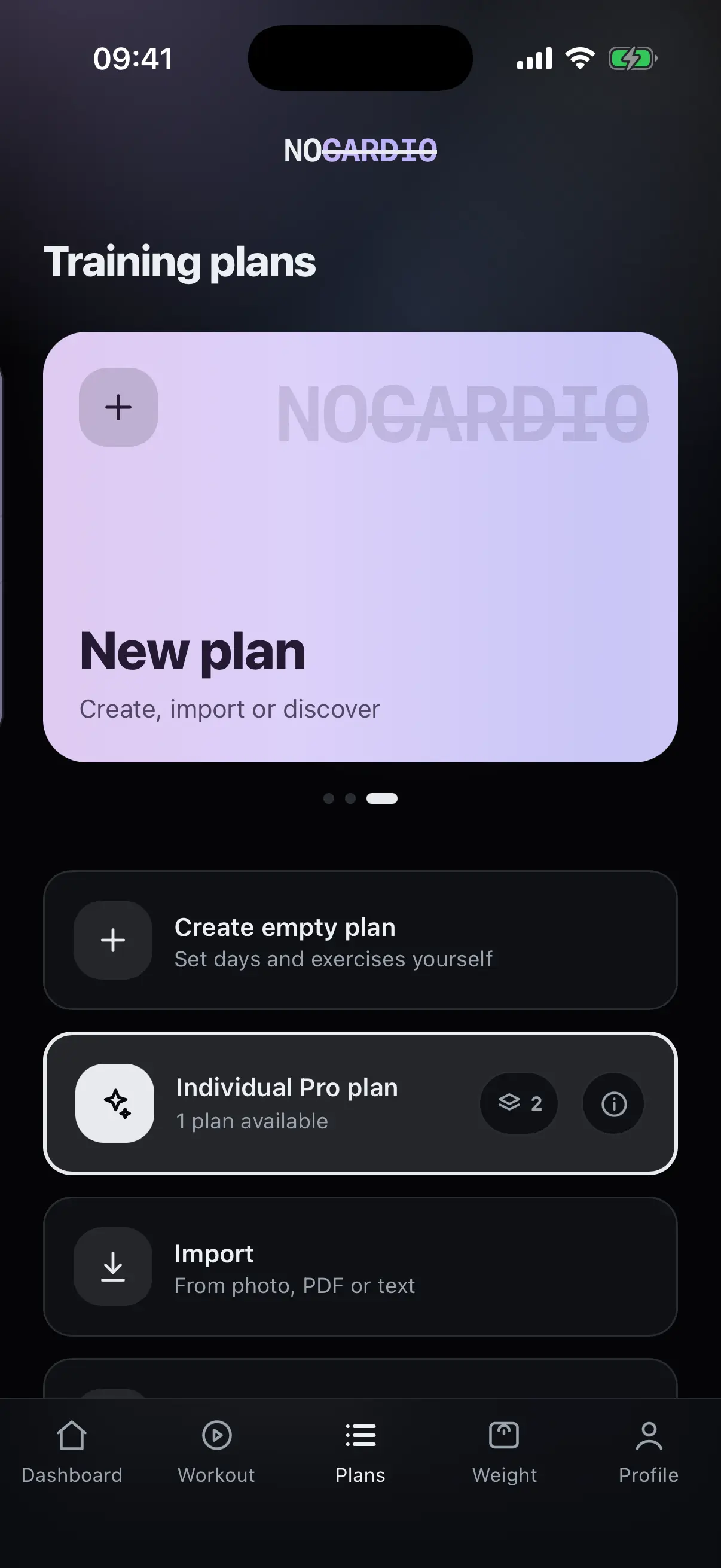
New plan
Three ways to a new plan: build it yourself, have it built, or read in an existing plan.
- Empty plan
- Set the days and exercises yourself.
- Have a plan built
- An individual plan, created from what you tell it. Part of Pro.
- Import
- Read in an existing plan from a photo, PDF or text. Part of Pro.
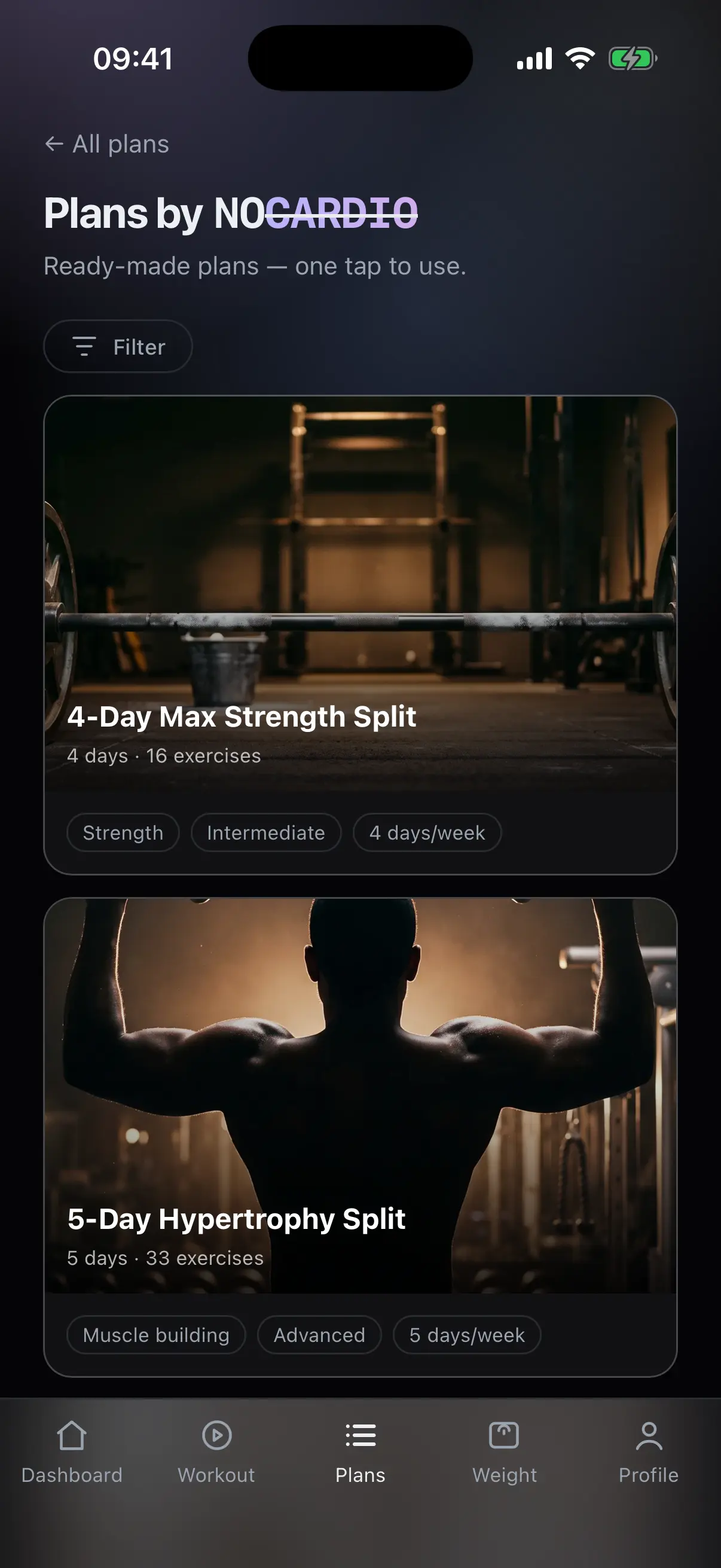
Take over ready-made templates
Ready-made training plans that one tap takes over. After that it is your plan, and you can change every day and every exercise.
- Per template
- Number of days and exercises, goal, experience level, days per week.
- Filter
- By goal, level and training days per week.
- Take over
- One tap, and the plan is yours. Free of charge.
Weight
Log your weight and see the trend instead of the daily swing.
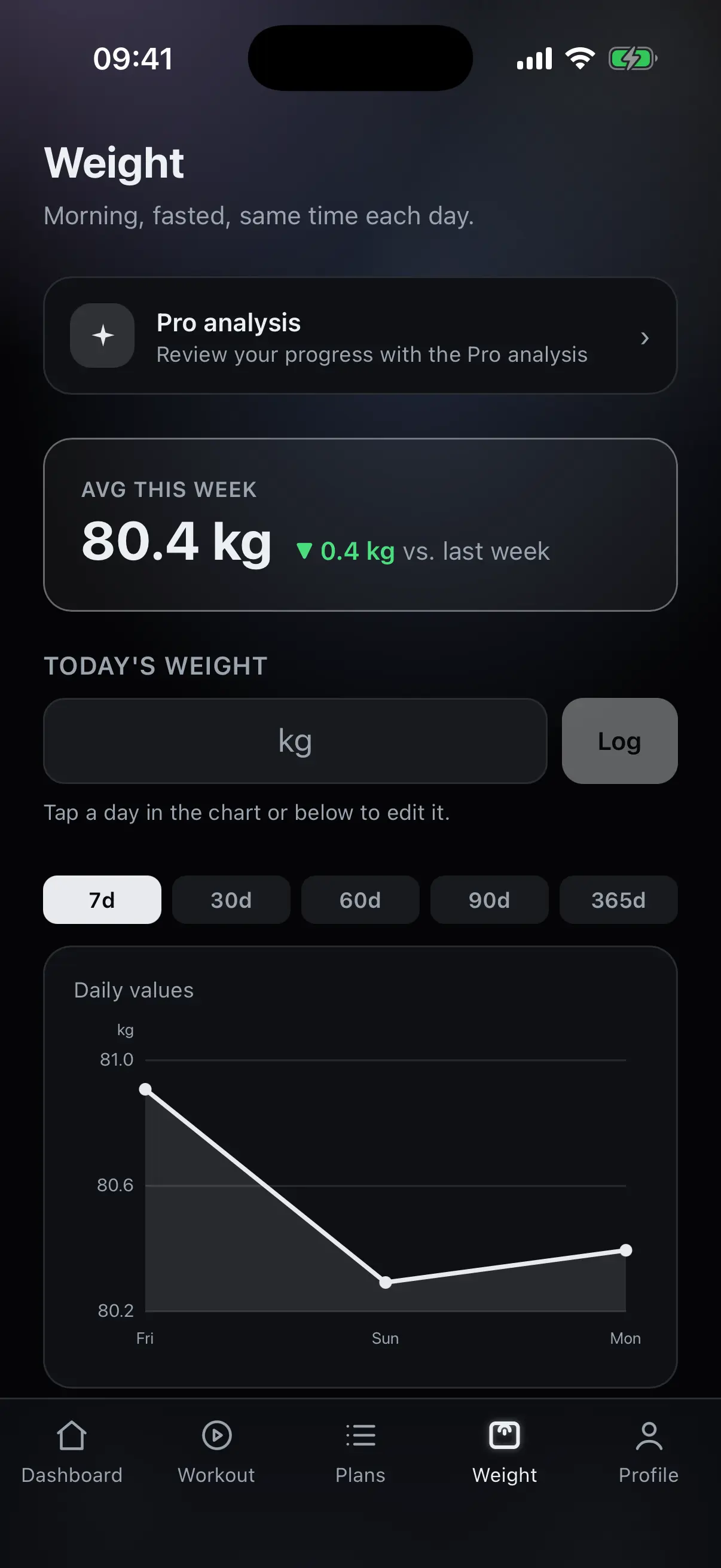
Track your weight
At the top is this week's average and the change against last week. Below it you enter today's value.
- Weekly average
- This week's average, with the change against last week.
- Log
- One field for today, also via the plus button on the dashboard.
- Fill in later
- Tap any day in the chart or the week strip and change it.
- No judgement
- A gain is not treated as bad. It may well be your goal.
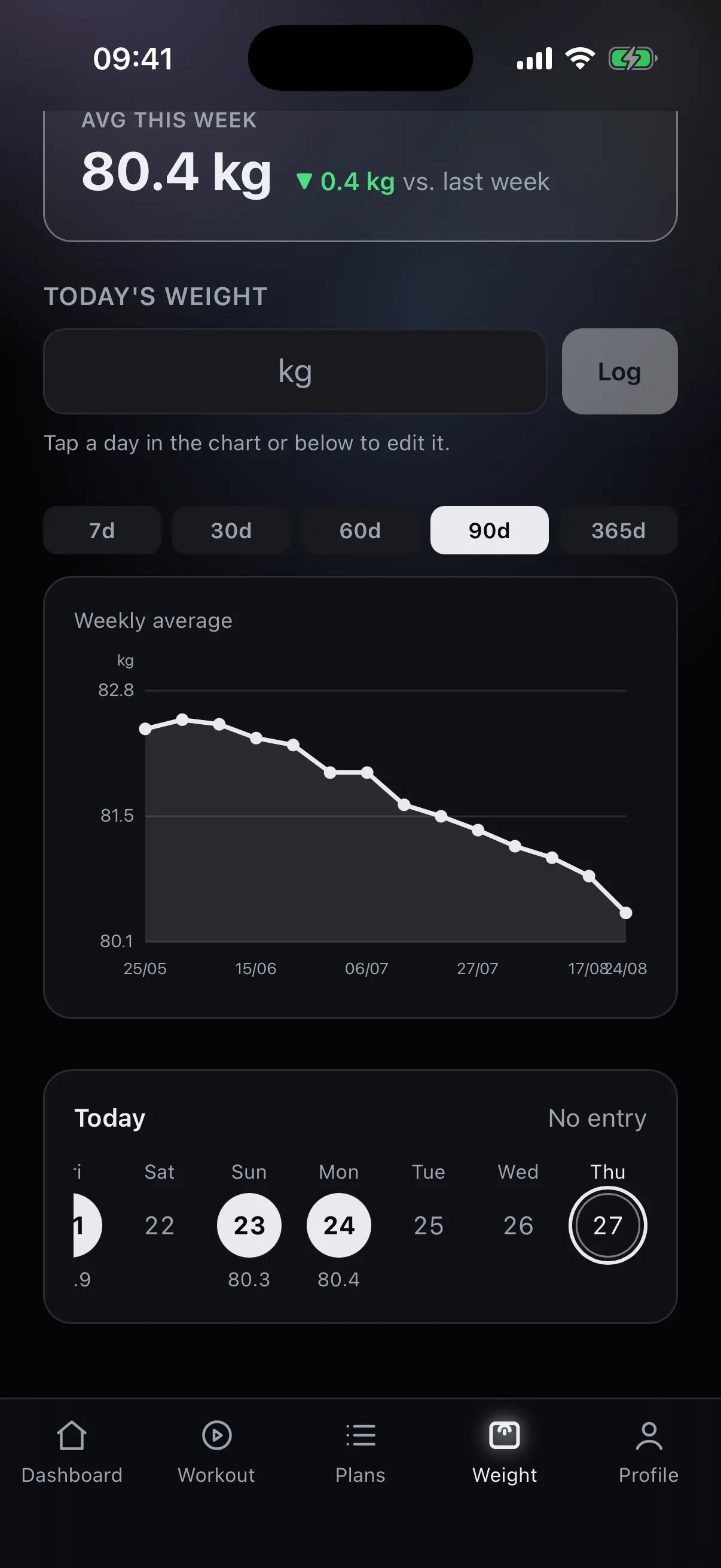
Trend instead of daily noise
Over longer periods the curve shows the weekly average. A single day barely moves it, so the direction stays readable.
- Periods
- 7, 30, 60, 90 days or a year, switchable above the curve.
- Daily values
- Over short periods the curve shows every single day.
- Week strip
- The current week with its daily values, below the curve.
The note on the screen stays the same: in the morning, fasted, at the same time.
Profile
Appearance, language, training settings, your own exercises and your data.
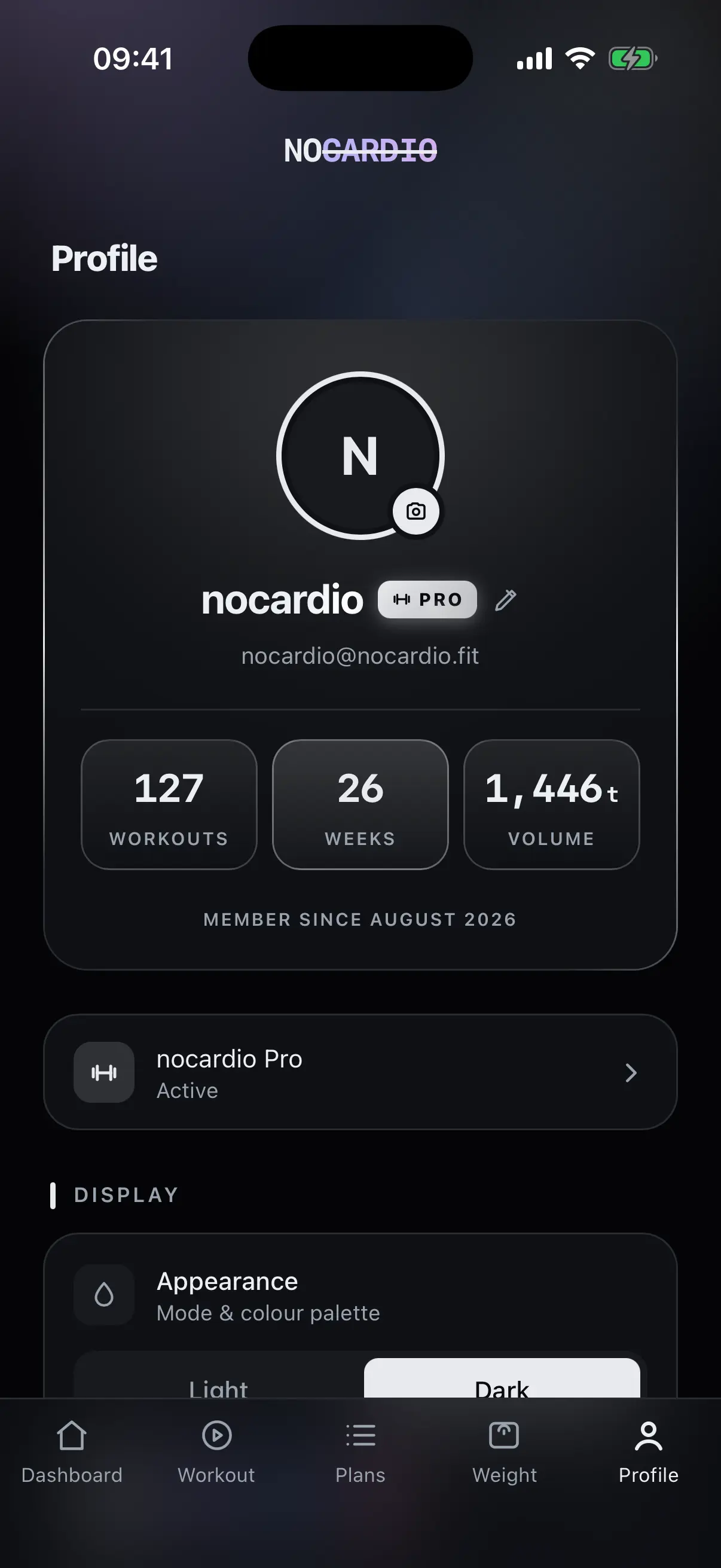
Your profile
At the top the profile card with picture, name and email, below it three numbers covering everything you have trained so far.
- Numbers
- Workouts, weeks and volume in total, plus since when you have been here.
- Profile picture
- Take or pick your own picture and crop it.
- Name
- Change your display name at any time.
- Pro
- The status of your Pro access, with the way to the details.
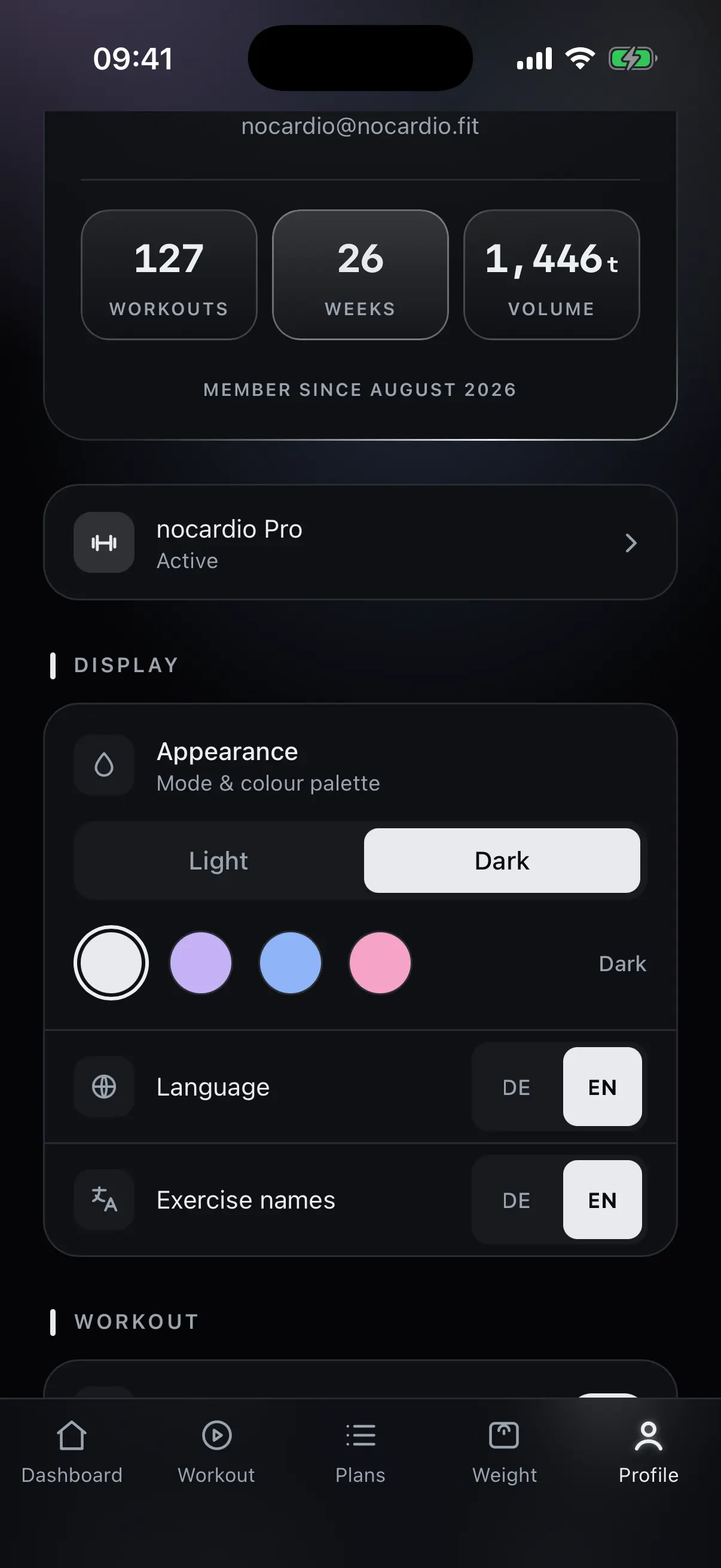
Appearance and language
Light or dark, plus a colour palette. Language and exercise names are set separately.
- Appearance
- Light or dark mode.
- Colour palette
- Several palettes to choose from, colouring the whole app.
- Language
- German or English for the interface.
- Exercise names
- Switchable separately, independent of the interface.
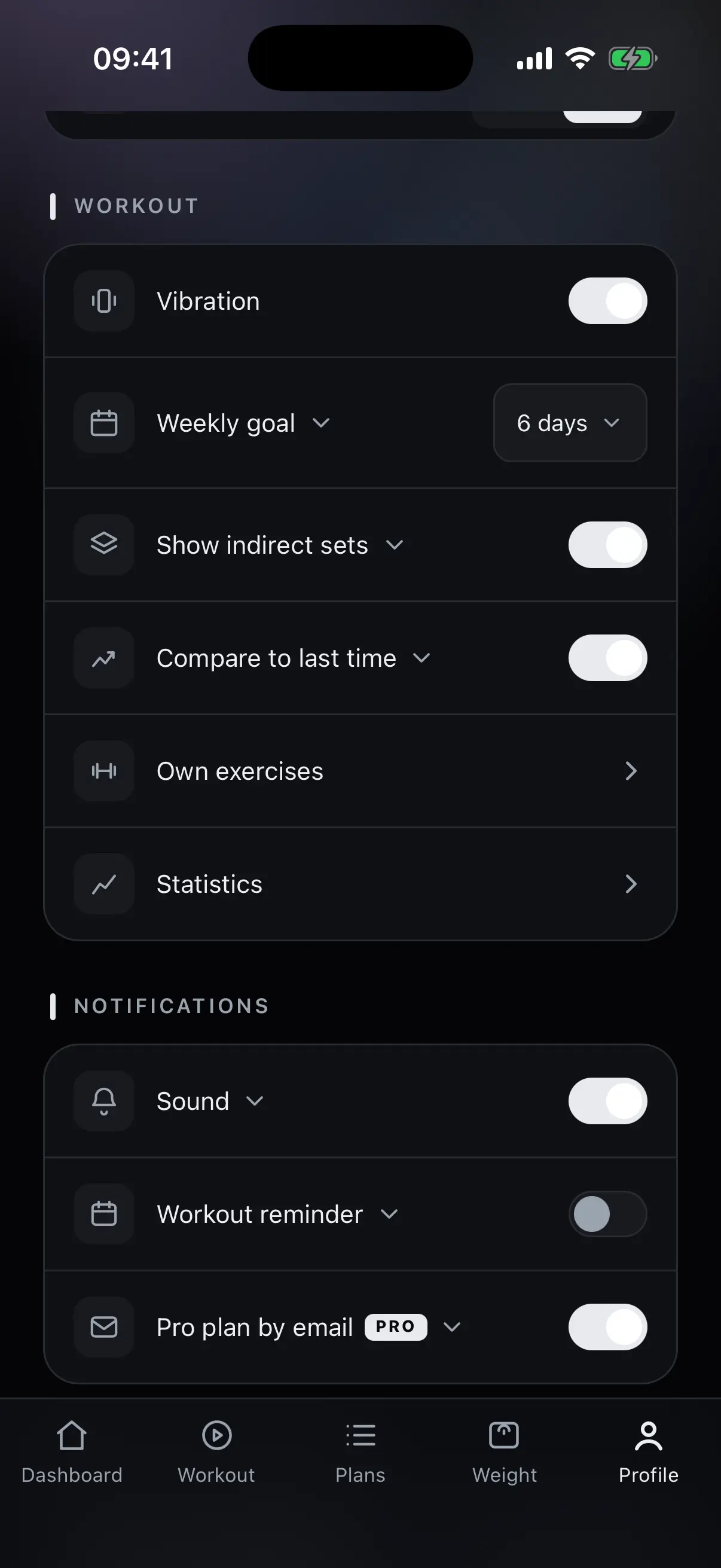
Training settings
What happens during a workout and what the statistics count is set here.
- Weekly goal
- How many training days per week you aim for.
- Indirect sets
- Whether indirectly worked muscles are counted and shown.
- Comparison
- Whether every exercise shows last time's value.
- Vibration
- Feedback when ticking off and on the wheel.
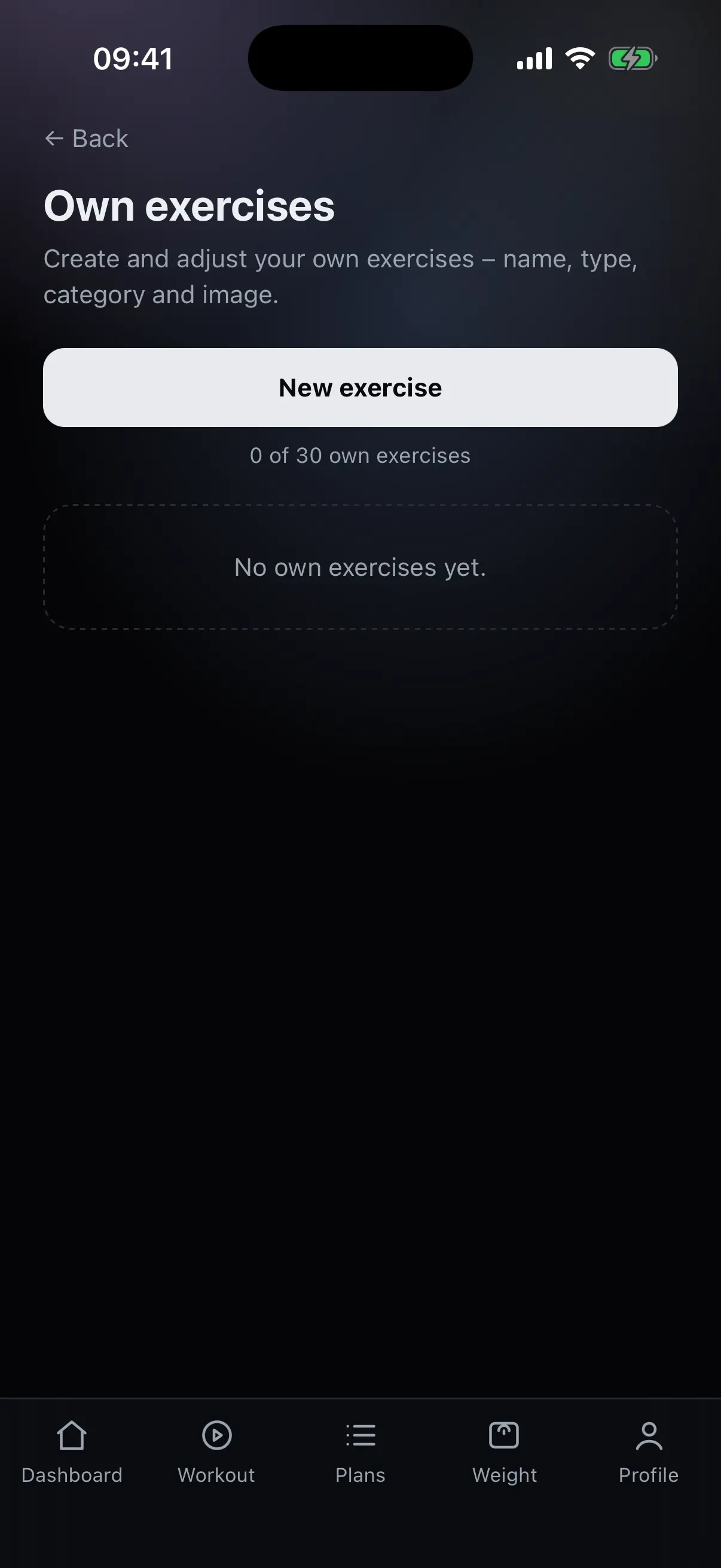
- Your own exercises
- The way to the exercises you created yourself.
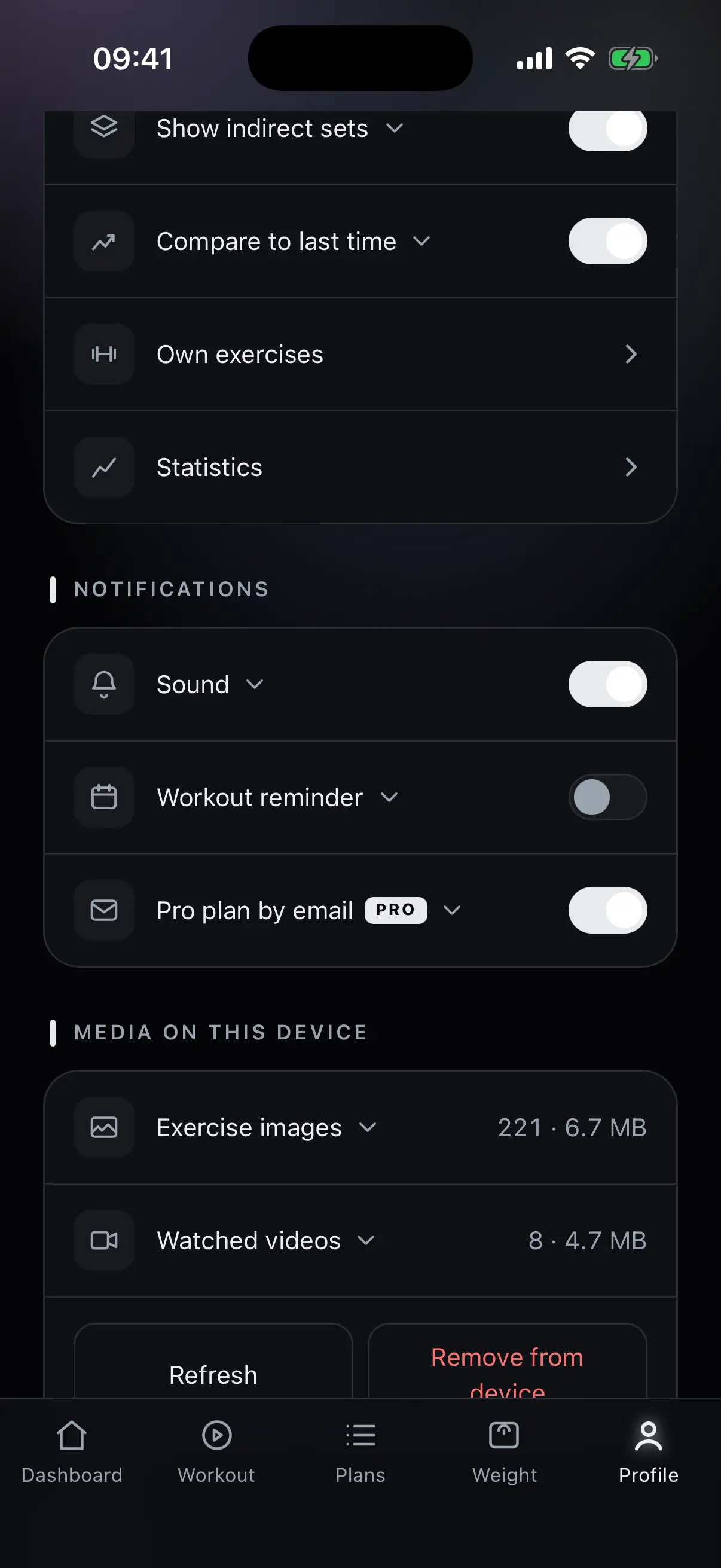
Notifications and media
Sounds and reminders are switched individually. Below it says how much space exercise images and videos take up on the device.
- Sound
- A signal at the end of the rest timer.
- Reminder
- A message on your training days.
- Pro plan by email
- The finished plan as an email as well. Part of Pro.
- Media
- Exercise images and watched videos, with their size. Reload or delete from the device.
Create your own exercises
If an exercise is missing, you create it yourself: with a name, type, category and your own picture. After that it is available in every plan.
- Your own picture
- Upload a photo and crop it, so you recognise the exercise in the list.
- Assignment
- Set type and category, so the exercise counts correctly in the statistics.
- Change later
- Name, picture and assignment stay editable at any time.
Your data and your account
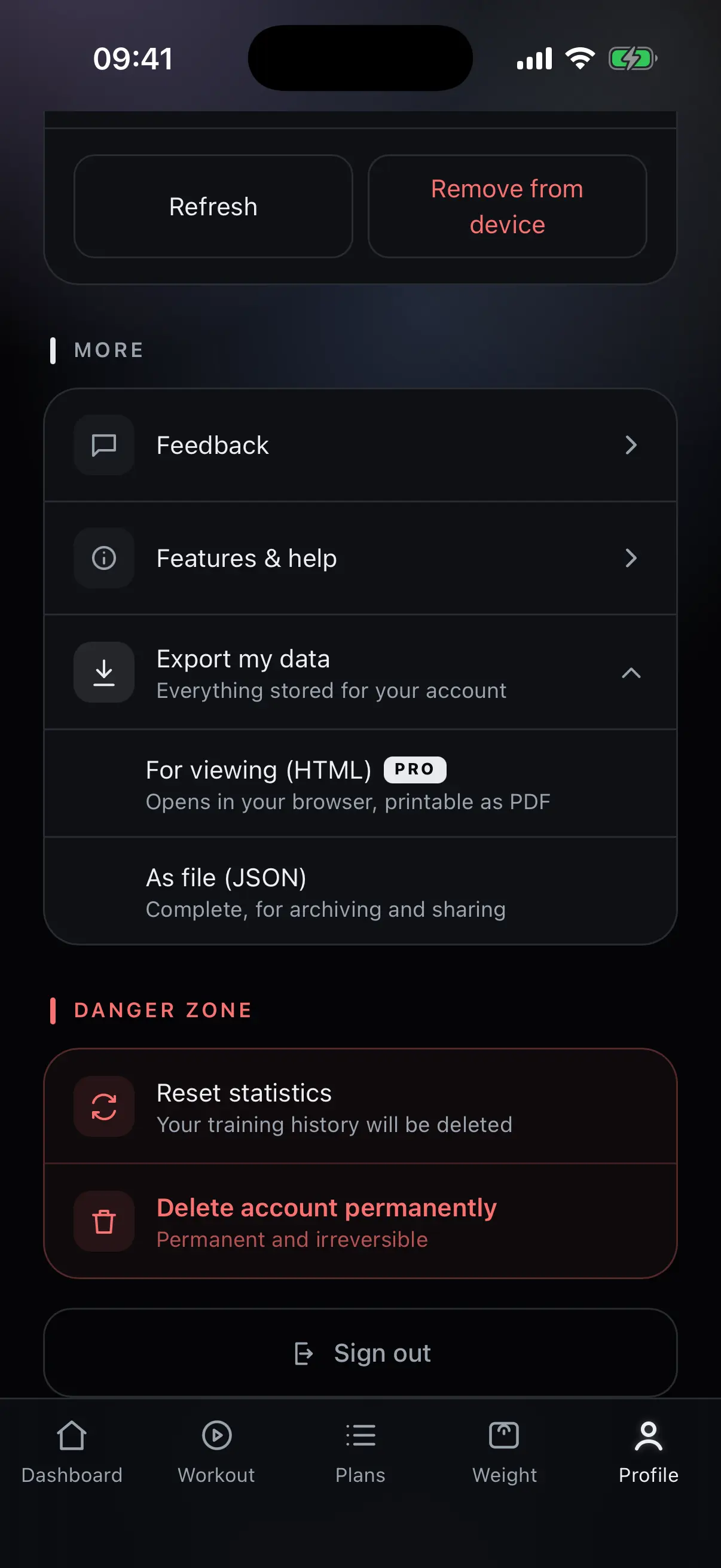
You can export everything stored under your account. And you can delete your account yourself, without emailing support.
- Export as a file
- Complete as JSON, for your archive or to pass on. Free of charge.
- Export to read
- As a page in the browser, printable as a PDF. Part of Pro.
- Reset statistics
- Deletes your workout history, the account stays.
- Delete account
- Final and not reversible, without going through support.
- Feedback
- A way to write to us straight from the app.
No advertising, no selling of your data.
nocardio Pro
The three features that cost real money on every use.
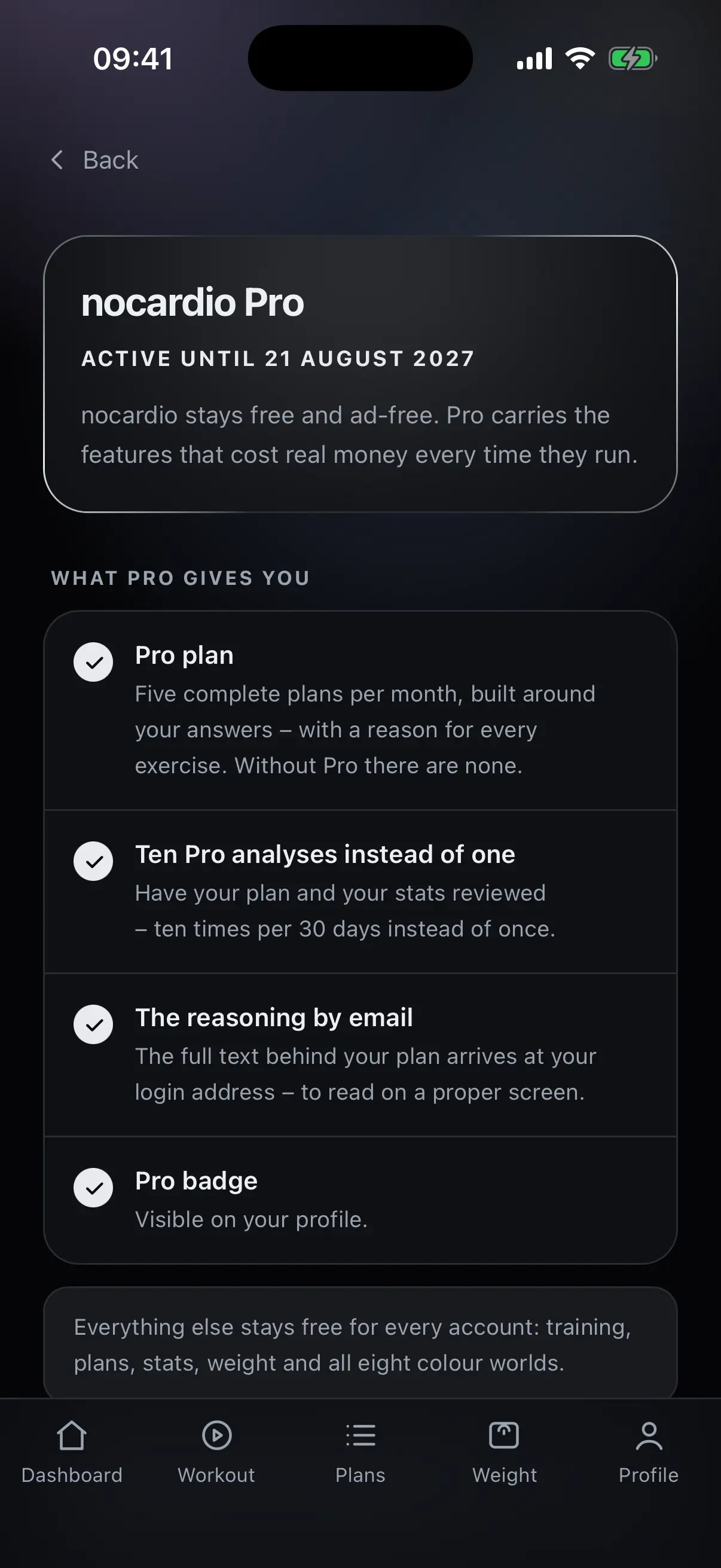
What Pro gives you
nocardio stays free and free of advertising. Pro carries the features that cost real money every time they run.
- Pro plan
- Five complete plans per month, tailored to what you tell it, with a reason given for every exercise. Without Pro they do not exist.
- Pro analyses
- Ten analyses in 30 days instead of one.
- Reasoning by email
- The full text on your plan arrives at your sign-in address, to read on a computer.
- Pro badge
- Visible in your profile.
What Pro costs is on the pricing page.
Pro analysis
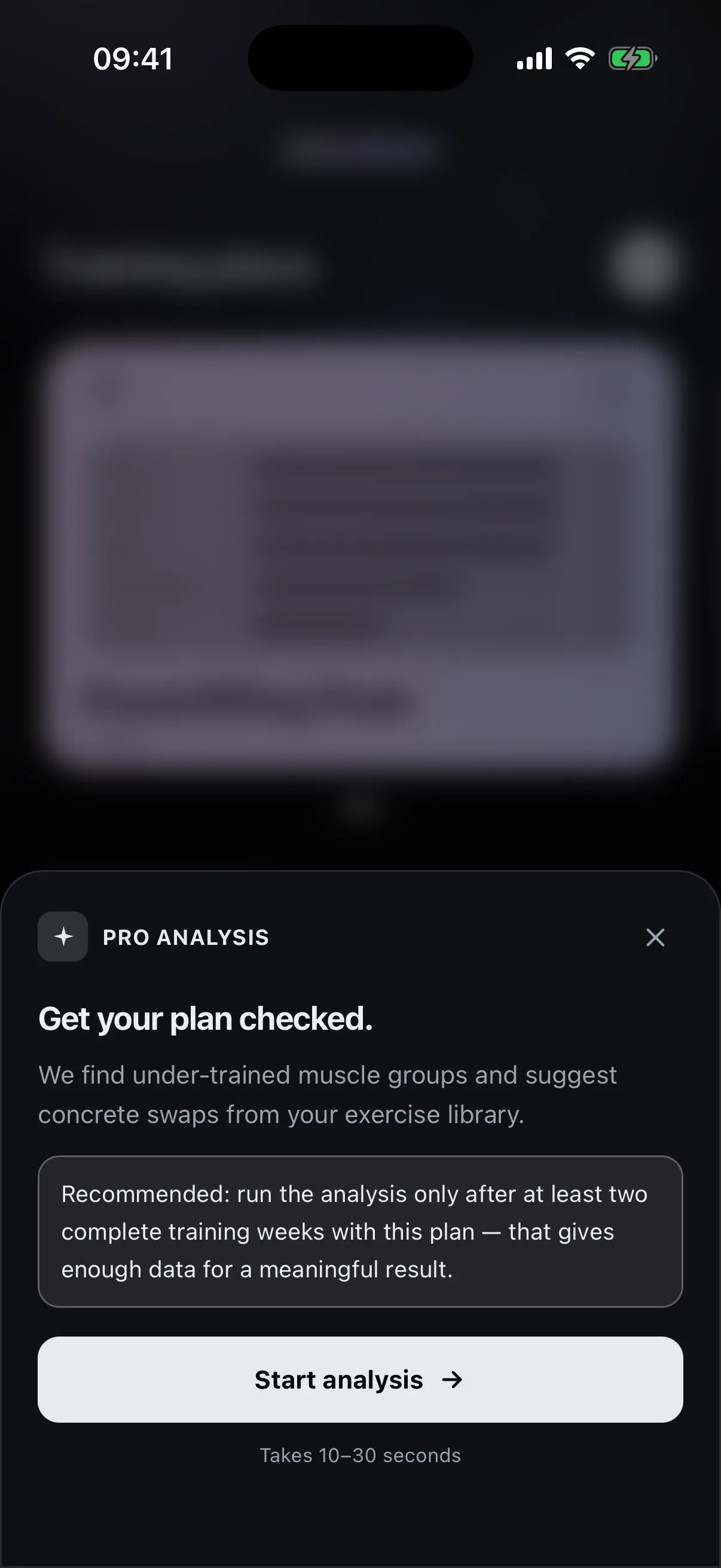
The analysis checks your plan and your statistics. It finds undersupplied muscle groups and suggests specific swaps from the exercise library.
- What it checks
- Plan and statistics together, not the plan on its own.
- What it delivers
- Undersupplied muscle groups and swaps you can adopt.
- When it makes sense
- Only after at least two full training weeks on the plan, otherwise there is too little data.
- Duration
- Ten to thirty seconds.
Plan import
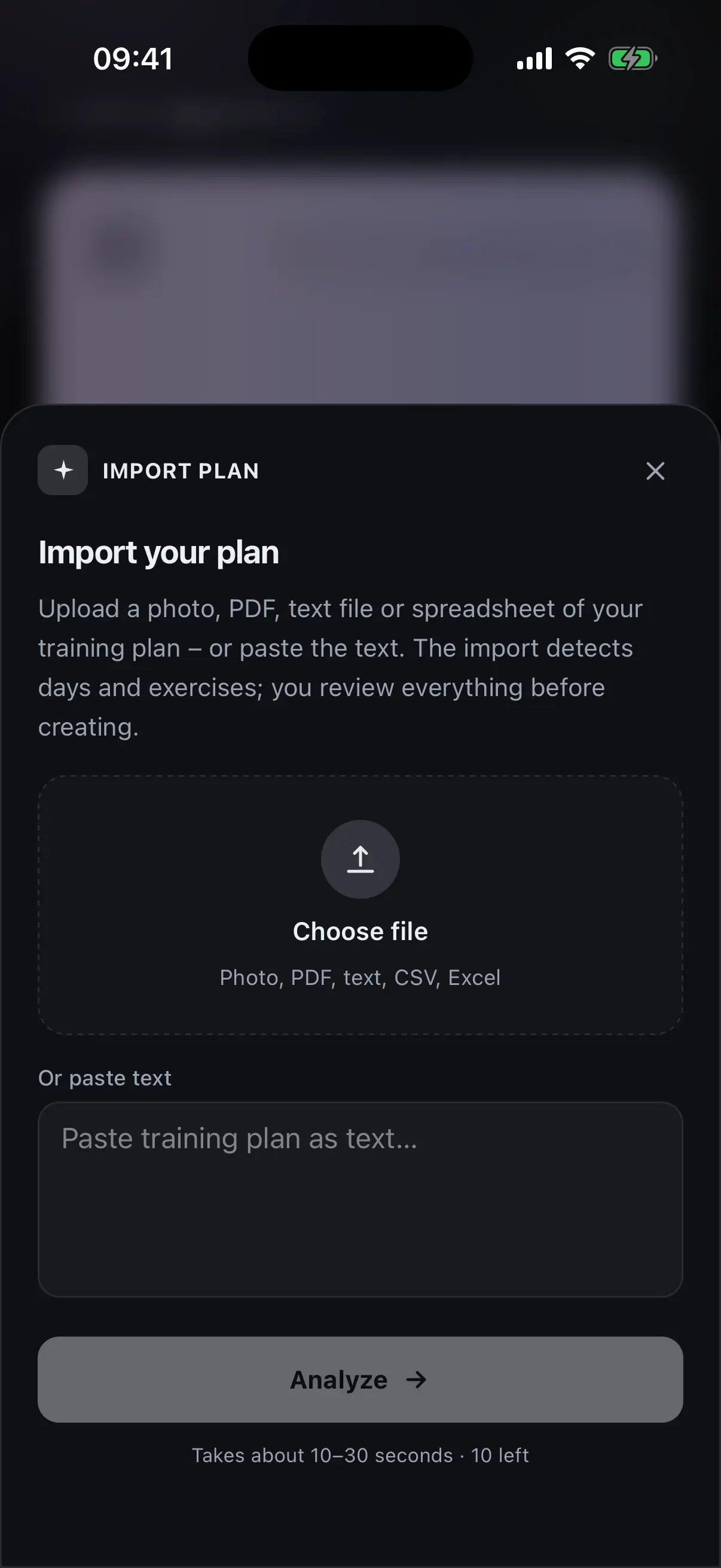
A plan you already have is read in by nocardio: from a photo, a PDF or from text.
- Photo
- The sheet from your coach, photographed.
- A plan you were given as a file.
- Text
- Typed or pasted in.
- Afterwards
- The plan is yours and can be edited day by day.